
Diagnose intermittent internet connection fast for small businesses
18 September 2026
Diagnose intermittent internet connection fast for small businesses
An intermittent internet connection means your service drops in and out unpredictably rather than failing completely, and the fastest way to move forward is a sequential power cycle: unplug the modem, wait a full 60 seconds, plug it back in and let it fully register, then power on the router. Once that’s done, plug a laptop straight into the router by Ethernet and see whether the drops stop. That single test tells you whether Wi-Fi is the problem or something deeper is going on.
TL;DR:
- Ensuring a full power cycle of the modem and router in the correct sequence is essential, with detailed timing and cable reseating to eliminate common faults.
- Running wired tests and monitoring LED signals helps isolate whether issues stem from Wi-Fi interference, faulty cables, or the ISP’s line.
- Using continuous ping, tracert, and PathPing tools over time provides concrete evidence of physical line degradation or congestion points within the network.
- Faults persisting after replacing consumer-grade equipment or with external patterns indicate that infrastructure upgrades or professional site surveys may be necessary.
- Collecting timestamped logs, screenshots, and modem event data before contacting the ISP accelerates resolution by focusing troubleshooting on physical line issues or congestion.
Table of Contents
- Quick checklist: what to try before anything else
- How do you tell if it’s your Wi-Fi, router, or the ISP?
- What ping, tracert and pathping actually tell you
- Common causes of internet dropouts and how to fix each one
- When should you contact your ISP about a dropping connection?
- How can small businesses prevent recurring connection drops?
- How we think about persistent connectivity faults
- How Essextelephonesystems can fix a connection that keeps dropping
- Sources
- FAQ
Quick checklist: what to try before anything else
Before you touch a settings menu or ring anyone, run through these checks. Most simple intermittent faults clear up in the first five minutes; the rest at least tell you what to test next.
- Power cycle in the correct order. Unplug the modem first, wait 30 to 60 seconds for its capacitors to fully discharge, then plug it back in. Only power on the router once the modem’s lights show it has re-registered with the network.
- Reseat every cable. Push the coax and Ethernet connectors firmly back into their sockets at both the wall and the device end. A half-seated connector is one of the most common causes of a connection that drops rather than dies.
- Swap in another device. Test a phone or laptop on the same connection. If the fault follows the network rather than the device, you’ve ruled out a single faulty gadget.
- Go wired. Connect a laptop directly by Ethernet cable and watch whether the drops continue. This is the single most useful five-minute test you can run.
- Pause anything hungry in the background. Turn off VPN clients, scheduled backups, and pending Windows or macOS updates, which can all masquerade as connection drops.
- Watch the router and modem LEDs. Note whether it’s the WAN light (facing the ISP) or the LAN/Wi-Fi lights that flicker when the drop happens. That distinction narrows down where the fault sits.
Pro Tip: Time each power cycle with a phone timer rather than guessing. A modem that hasn’t fully discharged and re-registered before the router comes back on often produces a connection that “looks” fixed for ten minutes and then drops again, which wastes far more time than the extra 30 seconds saved.
How do you tell if it’s your Wi-Fi, router, or the ISP?
Work outwards from the device, one layer at a time. This is standard practice among network engineers, and it matters because jumping straight to “call the ISP” wastes time chasing a fault that’s actually sitting on your own kitchen table.
Start with the wired versus wireless comparison. Plug in by Ethernet:
- Wired connection is stable, Wi-Fi still drops: the fault is almost certainly wireless. Suspect interference, distance, channel congestion, or a firmware issue on the router’s radio.
- Both wired and wireless drop identically: the router, modem, or the line coming into the building is more likely the cause.
- Everything drops even with the router bypassed: connect a laptop directly into the modem or ONT, skipping the router entirely. If drops persist here, the fault sits upstream with the modem itself or the ISP’s line.
That router-bypass test is worth repeating on its own, because it’s the single most diagnostic five minutes you can spend. If a direct connection to the modem is rock solid but adding the router back brings the drops back, you’ve isolated the router. If the modem itself drops even with nothing else attached, the problem is either the modem’s hardware or the signal coming down the line.
Testing across multiple devices and at different times of day adds another layer of evidence. If drops cluster around 6pm to 10pm on a residential connection, that pattern points to peak-hour congestion on a shared node rather than anything wrong in your building. If drops happen roughly every 24 hours at the same time, suspect a DHCP lease renewal or a router reboot schedule rather than a physical fault.
Watch for these signs that point outward, towards your ISP, rather than inward:
- The fault appears on a direct modem connection with the router removed entirely
- Neighbours on the same provider report similar issues
- The modem’s signal-level page shows unusually high or fluctuating values rather than a steady baseline
- Drops happen at consistent times regardless of household activity, suggesting network-side congestion
What ping, tracert and pathping actually tell you
A one-off speed test is close to useless for an intermittent fault. It measures throughput at a single moment and says nothing about the packet loss or jitter that happens in the gaps between tests. What you need are tools that run continuously and log what happens over time.
Ping is the starting point. Open a command prompt and run ping -t 8.8.8.8 (or your ISP’s DNS address) and let it run for at least three to five minutes for a general check, or 30 to 60 minutes if the fault is genuinely intermittent and unpredictable. Watch for:
- Packet loss — any “Request timed out” lines mean data isn’t arriving at all
- Latency spikes — response times jumping from 20ms to 300ms and back suggest congestion or an unstable link
- Consistent high jitter — response times swinging wildly rather than sitting near a steady average points to an unstable connection rather than a simple slow one
Tracert (Windows) or traceroute (Mac/Linux) shows the path your data takes hop by hop, and crucially, reveals exactly where a problem begins. Run tracert google.com and look at where response times jump or timeouts start. If hop 2, right at your own router, already shows loss, the fault is local. If everything up to hop 4 or 5 is clean and loss appears from hop 6 onwards, that’s squarely on your ISP’s infrastructure.
PathPing (Windows) or MTR (Mac/Linux) combines both tools, running continuously and accumulating per-hop packet loss statistics over several minutes rather than a single snapshot. This is the strongest evidence you can gather, because it shows a persistent percentage loss at a specific hop rather than a one-off blip.
A sustained MTR or PathPing run showing consistent loss at the same hop, hour after hour, is the exact evidence an ISP’s technical support team needs to open a real investigation rather than asking you to reboot the router again.
Alongside these, log into your modem’s admin page and check for T3 and T4 timeout events and CRC errors in the event log. These specifically indicate physical line degradation on cable connections, and screenshotting them with timestamps gives you concrete proof to bring to support.
Common causes of internet dropouts and how to fix each one
Matching the fix to the actual cause saves hours of pointless troubleshooting. Here’s what tends to sit behind the most frequent patterns.
Ageing or overheating hardware. Routers and modems degrade with age, and firmware bugs or heat build-up are common culprits behind chronic drops. Check that the device has clear ventilation, isn’t stacked under other equipment, and is running the latest firmware. A router pushing four or five years old with no update history is a reasonable candidate for replacement before you spend more time chasing phantom faults.
Loose or damaged cabling. Coax and Ethernet connectors loosen over time, and a partially seated connection can produce exactly the kind of intermittent drop that’s hard to reproduce on demand. Tighten every connector, swap out any cable that looks worn, and disconnect unused splitters or wall outlets that might be introducing signal loss on a shared line.
Wi-Fi interference and channel congestion. In built-up areas or busy offices, dozens of nearby networks can crowd the same channels. Switching your router to the 5GHz band, changing to a less congested channel, or adding a second access point or mesh unit for larger spaces often resolves drops that only affect wireless devices.
DHCP lease and device power settings. Some devices go to sleep and struggle to reconnect cleanly, while a short DHCP lease time can force frequent, disruptive re-negotiations. Extending the lease time in the router’s settings and disabling aggressive network-adapter sleep modes on laptops addresses a chunk of device-side intermittency that has nothing to do with the ISP at all.
ISP-side congestion or line faults. Home network congestion, ISP outages and faulty cabling sit high on the list of reported causes. Weather-related faults on overhead lines, degraded copper, or a congested local node all produce symptoms that look identical to a faulty router from the inside, which is exactly why the diagnostic tools above matter more than guesswork.
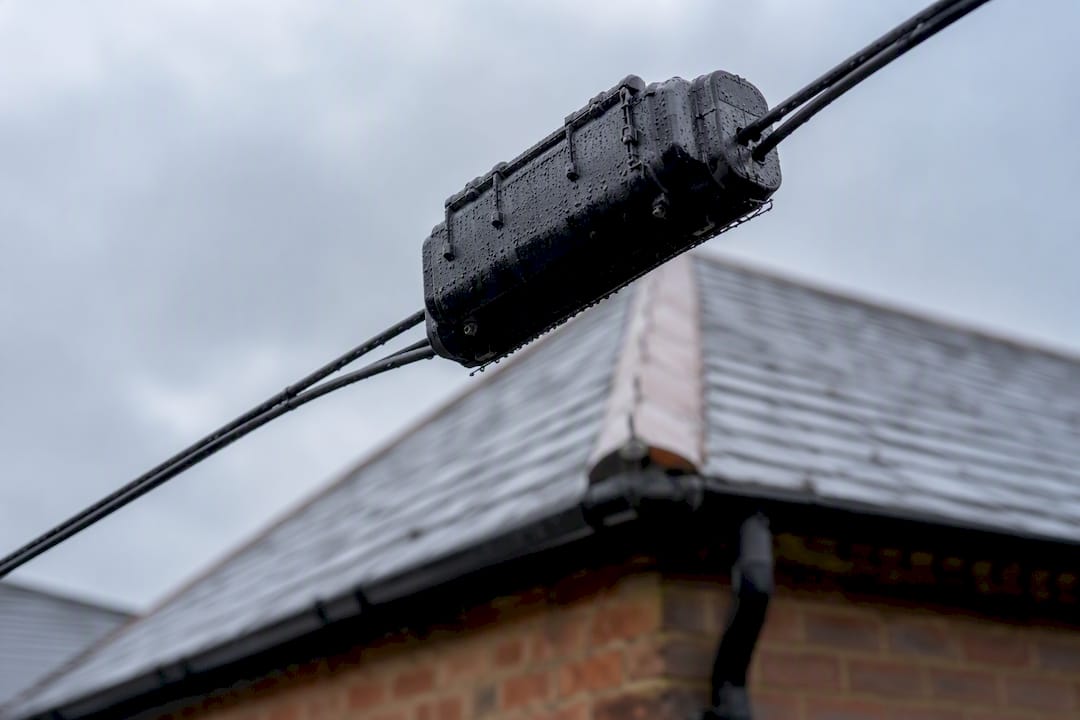
Pro Tip: If drops correlate with rain or high winds, suspect an outdoor cable joint or overhead line fault rather than anything inside the building. That pattern is one of the clearest signals worth mentioning when you contact support.
When should you contact your ISP about a dropping connection?
Escalate once your own tests point outward rather than inward. If a direct connection to the modem still drops, if PathPing or MTR shows consistent loss at a hop beyond your own equipment, or if the modem’s event log is filling with T3/T4 timeouts, you’ve done everything reasonable at your end.
Bring the following with you when you call, because vague reports get vague responses while documented evidence gets escalated:
- Timestamps and duration of every drop, ideally logged as they happen rather than reconstructed afterwards
- Screenshots of ping and tracert/PathPing output, showing packet loss percentages and which hop they start at
- Modem event log entries, particularly T3 and T4 timeouts and CRC error counts, with their timestamps
- Signal-level readings from the modem’s diagnostic page, especially if they’re fluctuating rather than steady
- A specific request, such as historical packet loss records, any open maintenance tickets for your area, or escalation to a network engineering team rather than a first-line script
A log showing, for example, 14 separate drops across a four-hour evening window is far more persuasive than “it keeps cutting out sometimes,” and tends to move you past first-line troubleshooting scripts faster.
| Evidence to bring | Why it matters |
|---|---|
| Timestamped drop log | Proves a pattern rather than a one-off complaint |
| Ping/PathPing screenshots | Shows packet loss percentage and which hop it starts at |
| Modem T3/T4 and CRC log entries | Indicates physical line degradation, not just a settings issue |
| Signal-level readings | Flags whether the modem itself is receiving a clean signal |
How can small businesses prevent recurring connection drops?
Consumer-grade routers are built for a handful of devices streaming and browsing, not for a dozen desk phones running VoIP alongside laptops, tills, and CCTV. If your office regularly has more than 15 to 20 connected devices, or if call quality on VoIP is part of daily operations, that’s a reasonable signal that business-grade equipment has become necessary rather than optional.
- Set a monitoring baseline. Free or low-cost network monitoring tools can log latency, jitter, and packet loss continuously, so you have historical data the moment something goes wrong rather than starting from zero.
- Consider access point placement properly. Larger offices often need more than one access point rather than a single router straining to cover the whole floor; a structured approach to capacity planning avoids buying kit that’s still undersized six months later.
- Add a failover connection. A 4G or 5G backup router that kicks in automatically during an outage keeps card payments, VoIP calls, and email running when the primary line drops.
- Weigh dual-WAN against a leased line. A second broadband connection is the cheaper resilience option; a dedicated leased line costs more but removes the shared-congestion risk entirely.
- Budget in tiers. Cheap fixes (cabling, firmware, reseating connectors) cost little and solve a surprising number of faults. Mid-range fixes (a new router, an access point) solve hardware age issues. A professional wifi survey or leased line is the right call once the fault is structural rather than a single faulty box.
How we think about persistent connectivity faults
Most guides to fixing dropped internet stop at “reboot your router,” and that advice genuinely works for a meaningful slice of cases. What frustrates business owners is the fault that survives three reboots and keeps coming back. In our experience, that’s rarely a mystery once you actually look at the evidence rather than guessing.

The sequence we follow is straightforward: survey the site to understand the physical layout and interference sources, isolate whether the fault is wireless, wired, or upstream, monitor the connection over time to catch the pattern rather than a single snapshot, then remediate with the right fix, whether that’s a cabling correction, a wifi survey and redesign, business-grade broadband, or a 4G/5G backup line.
The single biggest time-saver for any business calling us, or any provider, is arriving with diagnostics already gathered. A timestamped log of drops and a screenshot of a sustained ping or tracert result turns a vague “it keeps cutting out” call into a targeted fix within a single visit.
— Paul
How Essextelephonesystems can fix a connection that keeps dropping
An experienced telecom provider is a practical alternative to spending weeks swapping routers and hoping. Where consumer ISPs hand you a script and a generic replacement router, we start with a proper site survey to find out exactly why your connection is unstable, and fix that specific cause rather than guessing at it.

Our Wifi Survey and Design service maps out dead zones and interference before recommending anything, and our Network Cabling Installation team replaces the ageing or damaged cabling that’s often the real culprit behind drops that look like a Wi-Fi problem. For businesses ready to move off an unreliable residential-grade line, Basic Business Broadband starts from £24 a month, with fibre options available where a heavier connection is needed, and 5G & 4G Routers from £20 a month give you automatic failover so an outage never means a dead phone system or a frozen till.
UK-based support means faster answers when something does go wrong, and professional installation means it’s fixed properly the first time rather than patched. If your connection has been dropping for weeks rather than minutes, get in touch through our Broadband page and we’ll talk through what a proper fix looks like for your office.
Sources
- How to diagnose internet instability using built-in Windows tools — Digital Citizen
- Systematic internet troubleshooting: Network diagnostics guide — SpeedtestHQ
- Stop intermittent internet drops: SMB guide to WAN link failure diagnosis — hSECURITIES
FAQ
Why am I getting an intermittent internet connection?
The most common causes are ageing or overheating routers, loose cabling, Wi-Fi interference from nearby networks, and ISP-side congestion or faulty lines. A wired test straight into your modem is the fastest way to narrow down which of these applies to you.
What does it mean when my internet connection is intermittent?
It means your connection drops out briefly and reconnects, rather than failing completely and staying down. This differs from a full outage and usually points to a specific, findable cause such as interference, a failing cable, or an unstable upstream link.
Why do I have a poor connection if the router is in the next room?
Distance and building materials weaken a Wi-Fi signal even over short ranges, and thick walls or metal fixtures can block it further. A wifi survey identifies exactly where dead zones exist and whether a second access point would solve it.
Why does my Wi-Fi keep disconnecting intermittently?
Wireless-only drops usually trace back to channel congestion, an outdated router firmware version, or a device’s power-saving settings kicking in. Testing the same device by Ethernet cable quickly confirms whether the fault is wireless rather than something further upstream.
How much does business broadband cost if I need to switch providers?
Essex Telephone Systems offers Basic Business Broadband from £24 a month, with Standard and Fibre options available for higher demand. Current pricing for every plan is listed on the Broadband page.