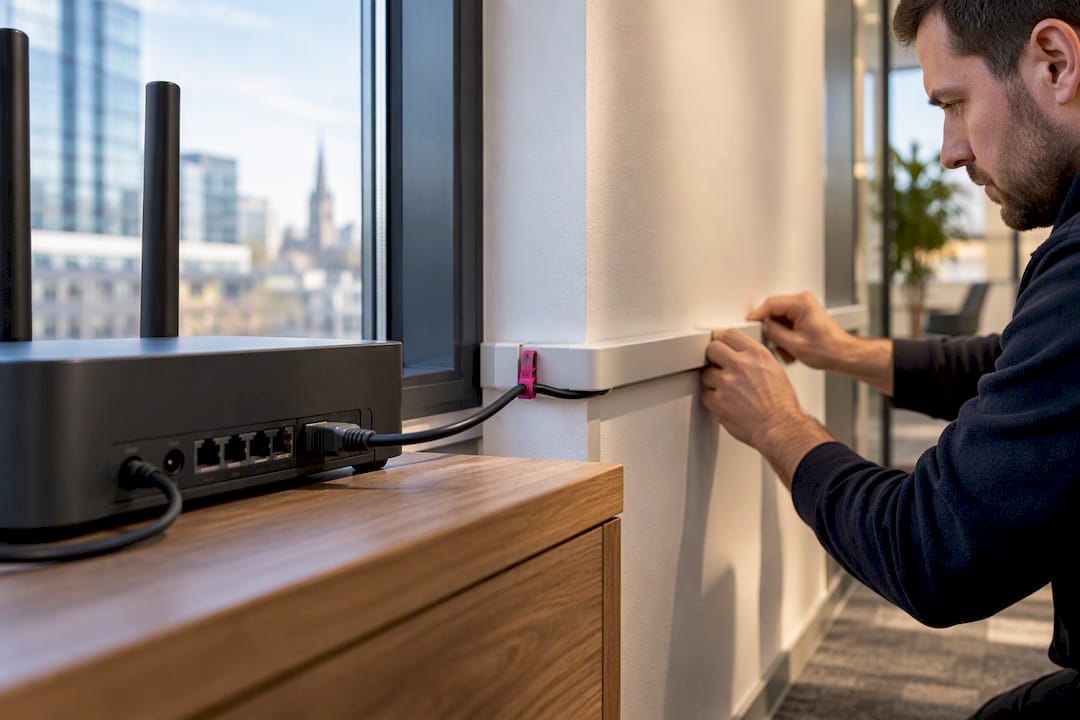
5G Router Placement in 15 Minutes: Avoid Antenna and Cable Loss (UK)
20 September 2026
5G Router Placement in 15 Minutes: Avoid Antenna and Cable Loss (UK)
Put your 5G router as high as practical, next to an exterior-facing window pointed towards the nearest mast, away from concrete, low-E glass and metal. Verify the choice with signal readings, not bars — SINR matters more than a full-bars display. Test at least two or three candidate spots before committing, then run a short site survey to confirm the winner holds up under real load.
TL;DR:
- Signal readings like SINR and band preference are more important than bar display when choosing a router spot, requiring multiple tests indoors and outdoors.
- Low-E double-glazed windows and thick building materials can cause severe signal loss, making outdoor placement or external antennas necessary for reliable 5G connectivity.
- To confirm a location’s long-term viability, repeated tests at different times and realistic load conditions are essential, with professional surveys recommended for guaranteed coverage.
- Cable loss from long runs or cheap cables can negate antenna gains, so use low-loss cables and match antenna MIMO configurations for optimal performance.
- External router and antenna placement should prioritize proximity to mast using signal mapping, with outdoor CPEs often better for rural or heavily obstructed locations.
Table of Contents
- Quick checklist for 5g router placement in under 15 minutes
- How 5G bands and building materials change what “best” means
- How do you run a site survey and read RSRP, RSRQ and SINR?
- When should you fit an external antenna, and what about cable loss?
- Placement tips by property type: flats, houses, offices and rural sites
- How do you confirm a placement will hold up long term?
- Does the weather actually affect your 5G signal?
- Should indoor and outdoor routers be placed differently?
- What causes 5G interference, and how do you reduce it?
- How do you place a router for several users or devices at once?
- What about power and cabling for the final setup?
- Publisher perspective: when DIY is enough and when to call a pro
- How Essex Telephone Systems handles your wifi survey and 5G router installation
- Sources
- FAQ
Quick checklist for 5g router placement in under 15 minutes
You don’t need test equipment to find a workable spot.
- Start at the highest exterior-facing window in the property and note the SINR and RSRP readings from the router’s admin page or your phone.
- Move roughly 0.5 to 1 metre and retest, writing each result down so you can compare properly rather than trust memory.
- Keep clear of metal filing cabinets, fridges, boilers and internal corners, all of which scatter or block the signal.
- Only think about an external antenna once you’ve confirmed a genuinely better signal outdoors than anywhere indoors.
Pro Tip: Take a screenshot of the signal screen at each test spot rather than jotting numbers on paper. It stops you fudging the comparison later when you’re tired and just want to pick one.
How 5G bands and building materials change what “best” means
There’s no single best spot for every router, because 5G doesn’t behave as one signal. Providers split it across low-band, mid-band and mmWave frequencies, and each behaves differently once it meets a wall.
Low-band signals travel further and punch through buildings reasonably well but carry less data. Mid-band, which most UK business routers rely on, trades some penetration for speed. mmWave is fast but barely gets past a single sheet of glass, so it’s mostly irrelevant for indoor placement decisions in typical premises.
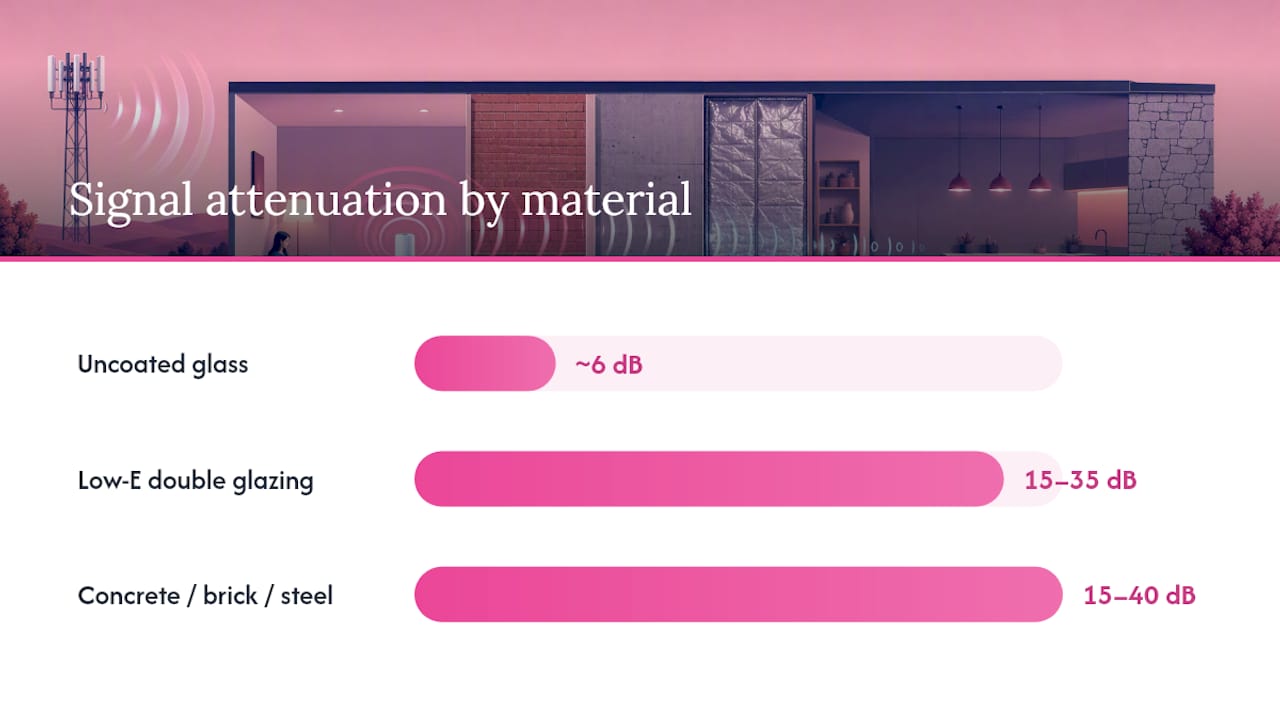
Building materials decide the rest. Uncoated glass costs you around 6 dB in signal loss, which is manageable. Low-E glass, the energy-efficient coating found in most modern double glazing, is a different problem entirely: it can attenuate a 5G signal by 15 to 35 dB, and thick concrete or steel can knock off a further 15 to 40 dB on top of that.
- Uncoated single glazing: light attenuation, usually fine.
- Low-E double glazing: heavy attenuation, often the hidden reason a router underperforms.
- Concrete, brick and steel-framed walls: severe attenuation, especially in commercial units.
Height matters for a related reason: getting the router closer to ceiling level improves the chance of a clear line of sight to the mast, which formal propagation guidance from the ITU treats as one of the biggest levers in indoor signal planning. If every indoor spot still comes back weak after testing, an external CPE or a mesh setup is the honest next step, not another attempt at repositioning the same box.
How do you run a site survey and read RSRP, RSRQ and SINR?
A proper site survey doesn’t need a technician on day one. A 5G phone with field-test mode enabled, or the router’s own admin page, will show you RSRP, RSRQ and SINR for any spot you stand in.
- Open field-test mode on your phone (searchable per handset model) or log into the router’s diagnostics page.
- Record RSRP as a supporting figure only, since it measures raw signal power without telling you how usable it is.
- Treat SINR as the number that actually predicts speed: 20 dB or above is excellent, 13 to 20 dB is good, and anything noticeably lower means degraded capacity even if the bars look full.
- Cross-check which mast and band you’re actually connecting to using CellMapper, since the nearest mast on the map isn’t always the one your router prefers.
- Take several readings at different times of day rather than trusting a single lucky sample.
A short handset survey like this typically takes under an hour for a single property. Pro Tip: If two spots show similar RSRP but different SINR, always pick the higher SINR location. It’s the figure that actually correlates with usable throughput on the CPE signal screen.
When should you fit an external antenna, and what about cable loss?
Fit an external antenna only once testing shows the outdoor signal is clearly stronger than anything achievable indoors, not just marginally better. A rough working rule is a difference of at least 10 dB before the swap is worth the cost and complication.
Cable loss is the part people skip and then regret. A standard RG58 cable run of 5 metres costs roughly 1.8 to 2.2 dB of signal loss at typical 2.6 to 3.5 GHz frequencies, which can erase most of the gain an antenna was meant to deliver.
- Use low-loss cable types such as LMR200 or LMR400 for any run longer than a couple of metres.
- Keep cable runs as short as the installation genuinely allows.
- Match the antenna’s port count to the router’s MIMO configuration. Mixing a 2×2 antenna with a 4×4-capable router (or the reverse) wastes performance you’ve already paid for.
- Keep both cables in a dual-antenna setup the same length, since unequal runs disrupt the spatial-stream alignment multi-antenna routers depend on.
Test the candidate antenna position with a short temporary cable first and compare the reading at the router before committing to a permanent fixed install.
Placement tips by property type: flats, houses, offices and rural sites
The right spot for a terraced house rarely works for a first-floor flat, and an office block needs a different compromise altogether.
- Flats: stick to your own exterior-facing windows. Shared corridors and communal loft spaces sit outside your control and often carry other tenants’ interference sources anyway.
- Terraced and detached houses: the highest exterior-facing window, or a loft roof mount if the loft isn’t boarded with foil-backed insulation, usually wins.
- Offices: balance central Wi-Fi coverage for desks against an external-facing CPE or directional antenna near a window, so the router itself sits close to the source signal while Wi-Fi spreads from a separate access point.
- Rural sites: favour a directional outdoor CPE with proper mast alignment over anything indoors, since mid-band coverage often thins out well before it reaches a rural property boundary.
Larger premises spanning several rooms or floors benefit from a mesh setup rather than one router straining to cover everything. Mesh nodes work best spaced for overlapping coverage rather than positioned to simply repeat a weak signal further into the building.
How do you confirm a placement will hold up long term?
A spot that looks brilliant for five minutes can fall apart under normal daily use. Confirm any placement decision with more than one good reading.
- Retest at different times of day and, ideally, on different days, since congestion and multipath effects shift throughout a week.
- Run a speed test under realistic load, with several devices connected, rather than trusting a single idle-network peak.
- If results swing wildly between tests, recheck antenna orientation, cable runs and the band the router has locked onto.
- Treat isolated high readings with suspicion. Indoor throughput tests can be misleading when multipath reinforcement briefly inflates a result that won’t repeat.
- Book a professional wifi survey if a small business site needs guaranteed coverage across several rooms or floors, rather than relying on trial and error.
Consistency across repeated tests, not a single standout number, is what separates a placement that works from one that only got lucky once.
Does the weather actually affect your 5G signal?
Rain, fog and heavy cloud cover do reduce signal strength, though the effect is usually modest for the mid-band frequencies most UK business routers use. mmWave signals suffer far more from rain fade, but few indoor business routers rely on mmWave in the first place.
Wind matters indirectly rather than directly: it moves trees, and dense summer foliage between your router and the mast can noticeably worsen signal compared with the same path in winter once the leaves have dropped. If your router sits near a mature tree line, expect some seasonal variation and don’t panic if autumn readings look worse than a spring test.
Temperature swings can affect equipment performance at extremes, though this rarely matters for typical UK conditions. What causes more day-to-day variation than weather is simply network congestion: masts serving more connected devices during business hours or peak evening periods will show weaker SINR than the same mast at 6am, regardless of what’s happening outside.
If you test a location on a clear day and get a great reading, it’s worth a second test during heavier rain or on a more overcast day before locking in a permanent installation. The difference is rarely dramatic, but for a business relying on the connection for calls or card payments, a small margin of safety is worth the extra ten minutes.
Should indoor and outdoor routers be placed differently?
Yes, and treating them the same is a common mistake. An indoor router has to compromise between two competing needs: proximity to an exterior wall for signal strength, and proximity to where people actually need Wi-Fi. An outdoor CPE, by contrast, only has one job: get the clearest possible path to the mast.
For indoor units, the exterior-facing window rule dominates, but you still need to think about where the router’s own Wi-Fi radio needs to reach. A router pushed right against a window in a back room might get five bars of mobile signal but leave the front of an office with patchy Wi-Fi. That’s often the point at which a separate Wi-Fi access point, fed by an ethernet cable from the router, makes more sense than trying to make one box do both jobs.
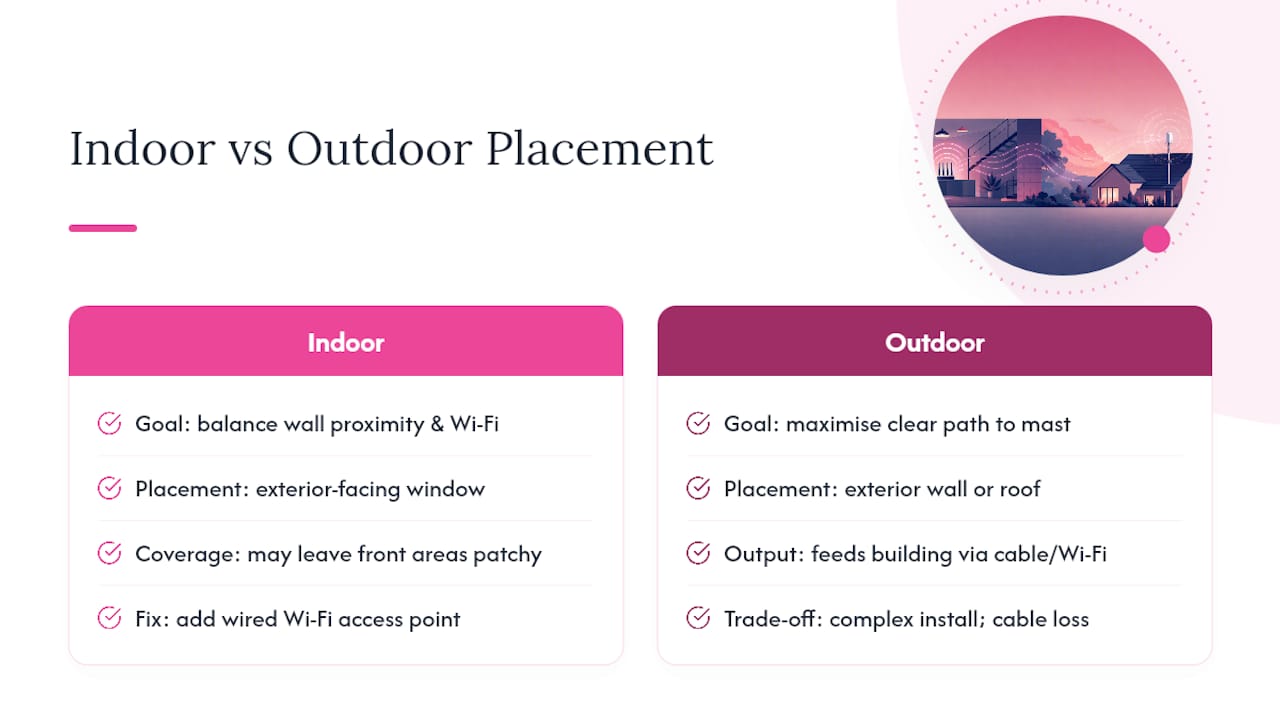
Outdoor CPEs remove that compromise entirely. Mounted on an exterior wall or roof bracket, pointed towards the identified mast using a CellMapper lookup, they can achieve far cleaner reception than anything indoors, then feed a wired or Wi-Fi connection back into the building. The trade-off is installation complexity and the cable-loss considerations already covered. For a rural property or a building with genuinely difficult wall construction, an outdoor unit is often the more reliable long-term answer, even though it costs more to set up than simply moving an indoor box to a better window.
What causes 5G interference, and how do you reduce it?
5G shares its mid-band spectrum with a surprisingly crowded set of neighbours. Other Wi-Fi networks in the same building, cordless phones, microwave ovens and even some older baby monitors can all clash with the frequencies your router relies on, though the interference is generally less severe than with older 2.4 GHz Wi-Fi bands.
Metal objects cause a different kind of problem: not interference exactly, but reflection and scattering that can create dead zones a few centimetres from an otherwise strong signal. Filing cabinets, server racks, lift shafts and structural steel are the usual culprits in office environments.
Congestion from other users on the same mast counts as a practical form of interference too. A router might be pulling in a perfectly good signal from a nearby mast, then that mast pushes it onto a busier band during peak hours, and throughput drops even though the raw signal reading barely changes. That’s part of why the closest mast isn’t always the fastest one: routers left on automatic band selection sometimes default to a congested low-band signal rather than a clearer mid-band option available from the same site.
To mitigate most of this, keep the router at least a metre from large appliances and metal furniture, lock the band selection manually if your router allows it and you’ve confirmed a better band through testing, and separate the router from other wireless equipment like cordless phone base stations where possible.
How do you place a router for several users or devices at once?
A single router serving one laptop has very different needs from one supporting a full office of laptops, VoIP handsets and mobile devices simultaneously. Placement decisions that work for light use start to show cracks as device count rises.
The core problem is that SINR degrades under load even when the physical location hasn’t changed. More connected devices means more contention for the same channel, so a spot that tested brilliantly with one phone can feel noticeably slower once ten people are on a call at the same time. This is why the earlier advice to test under realistic load, not just an idle connection, matters more for shared business use than for a single home user.
For multiple simultaneous users, central placement of the Wi-Fi radio matters as much as signal strength at the router itself. If the router sits in a back corner to catch the best mobile signal, consider feeding a separate, centrally placed access point over ethernet rather than relying on the router’s own Wi-Fi to reach every desk. This decouples the two jobs, mobile signal capture and Wi-Fi distribution, and lets each be optimised independently.
For offices with a genuinely high device count, a proper wifi survey becomes worthwhile precisely because guesswork gets harder to trust as the number of connected devices grows. Shared workspaces face this acutely: coworking environments in particular need to plan for member behaviour and peak congestion, not just raw signal strength, when deciding where equipment goes.
What about power and cabling for the final setup?
Once you’ve found the right spot, don’t undo it with a bad power or cabling decision. The best signal location in a building is sometimes nowhere near a mains socket, and running an extension lead across a floor is both a trip hazard and a fire-risk shortcut nobody should take in a business premises.
If the ideal signal spot lacks power, a qualified electrician fitting a new socket is a smaller job than most people expect, and it’s cheaper than living with a compromised placement for years. Power over Ethernet (PoE) is worth considering for routers and access points that support it, since it lets you run a single cable for both data and power rather than two separate lines to the same spot.
Cable management matters for the same reason cable loss matters: a badly routed cable that gets crushed under a door, kinked around a tight corner or run alongside high-voltage electrical cabling can degrade performance or damage the cable’s shielding over time. Keep data cables away from parallel runs of mains electrical cable where practical, and use proper cable clips or trunking rather than tape and hope.
For businesses running a router alongside other connectivity, such as a business mobile SIM as backup, tidy cable management also makes it far easier to trace faults later, since nobody wants to be crawling under a desk trying to work out which cable feeds which box during a live outage.
Publisher perspective: when DIY is enough and when to call a pro
Most placement problems really do get solved by moving the box and checking SINR, and I’d try that first every time. Where DIY runs out of road is cable loss and antenna matching, where small errors quietly erase the gains you’re chasing. A proper wifi survey and correctly specified cabling remove that guesswork, and Essextelephonesystems can carry out that survey with UK-based support when a site genuinely needs it.
— Paul
How Essex Telephone Systems handles your wifi survey and 5G router installation
This service offers a practical alternative to trial-and-error placement for businesses that need a reliable connection. Rather than you guessing between three windows and hoping the SINR holds under load, a proper survey measures it, maps the nearest masts and gives you a recommendation backed by real readings rather than a hunch.

The Wifi Survey and Design service covers signal measurement across your premises, mast and band mapping, and specific antenna and cable recommendations where an external setup is genuinely needed. Professional installation avoids the two mistakes covered earlier: mismatched cable loss eating your signal gain, and antenna setups that look fine on day one but fail under real load. If you’d rather have connectivity installed properly the first time than spend a weekend testing windows, browse the 5G & 4G Routers range and get a quote for your site.
Sources
- Measurement and modelling of glass and window coatings effect on radio propagation
- ITU-R P.1238 — Propagation data and prediction methods for the planning of indoor radio communication systems
- Practical user guide: diagnosing and fixing fluctuating speeds on 5G routers
- Optimizing 5G router placement for maximum signal strength
FAQ
How do you get a 5G signal inside a house?
Position the router as high as practical next to an exterior-facing window aimed towards the nearest mast, then verify with SINR readings rather than bars. Avoid low-E glass and thick concrete walls wherever you can, since both cause heavy signal attenuation, and retest at a couple of nearby spots before settling on one.
Where should you avoid placing a router?
Avoid internal corners, rooms without an exterior wall, and spots near large metal objects such as fridges, filing cabinets or boilers, all of which scatter or block the signal. Low-E glazed windows are also a poor choice despite looking like an obvious exterior-facing spot, since the coating can cut signal by 15 to 35 dB.
Is it better to put a router upstairs or downstairs?
Upstairs is usually better for 5G reception because height improves the chance of a clear path to the mast, a principle formal propagation guidance treats as one of the strongest levers available. Downstairs can still work fine if it has a strong exterior-facing window and tests well on SINR, so don’t assume upstairs automatically wins without checking.
How far does a 5G router reach?
Range depends heavily on which band the router connects to. Low-band signals travel much further through buildings and open ground, mid-band trades some range for speed, and mmWave rarely covers more than a short, unobstructed distance. For a specific site, a short survey using a 5G phone or a router’s diagnostics page tells you more than any general distance figure.
Can Essex Telephone Systems help with 5G router placement?
Yes. There is a wifi survey and design service that measures signal across a property, maps nearby masts and recommends the right antenna and cabling setup where an external installation is needed. The 5G and 4G router plans start from £20 per month, offering a fully installed solution rather than a DIY test-and-move approach.